Microsoft Teams
Bring custom agents into Microsoft Teams with Adaptive Cards, streaming updates, approvals, and durable conversation context.
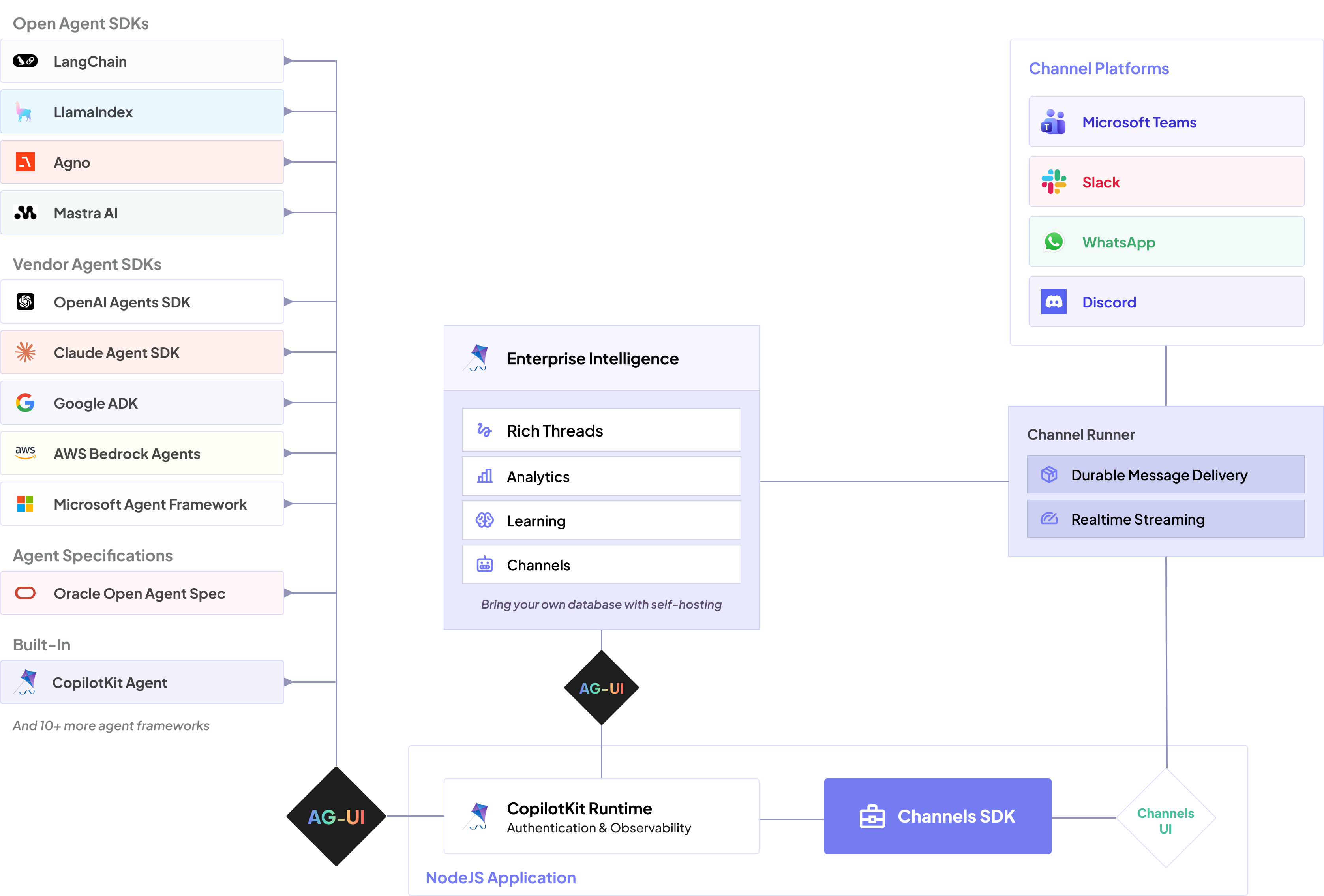
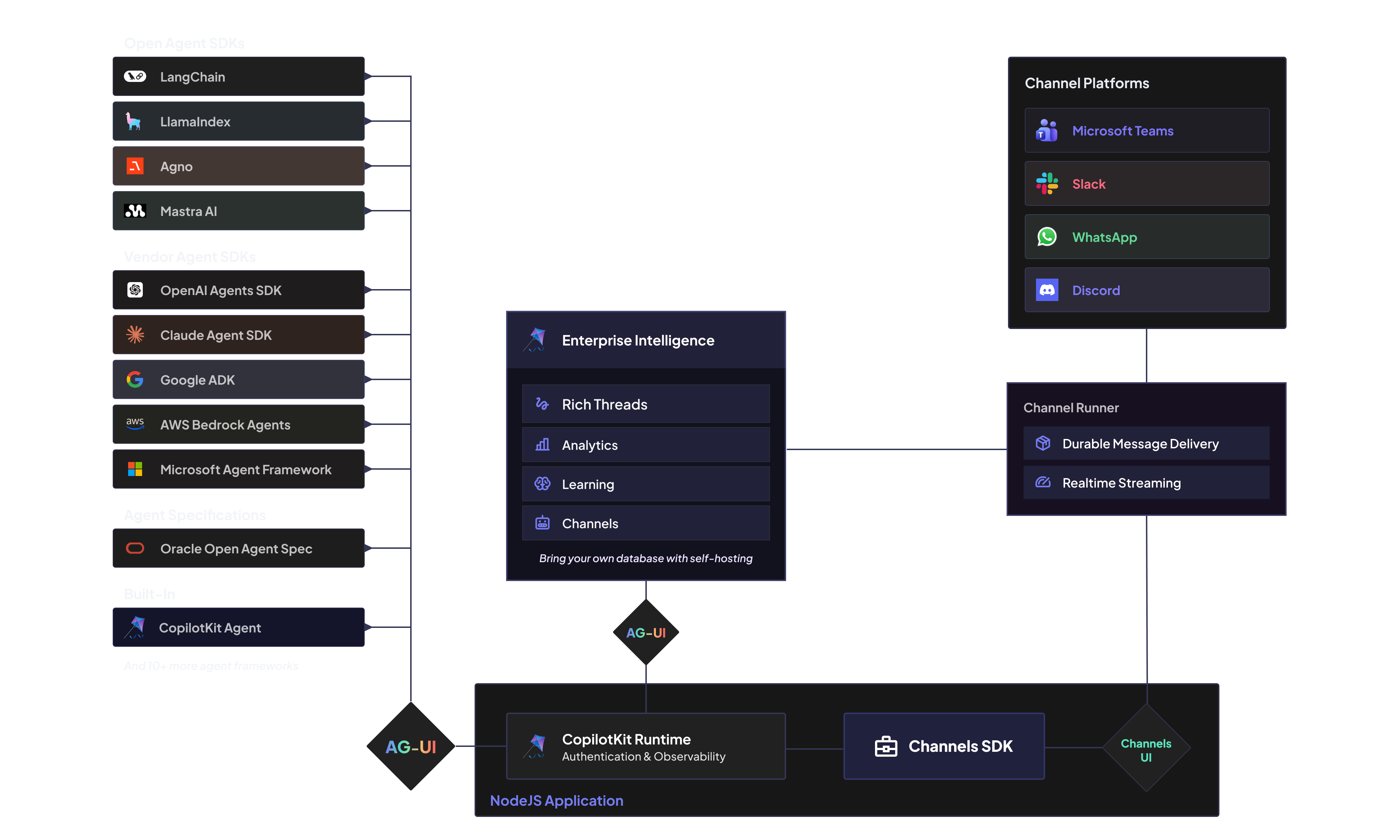
Microsoft Teams can be the frontend for agents built on any harness or framework, so your organization can get work done where conversations, decisions, and approvals already happen. The open source Channels SDK gives you the adapter path for TypeScript handlers and JSX-authored Adaptive Cards. CopilotKit Enterprise Intelligence adds the self-hosted or cloud-hosted production layer for conversation mapping, durable agent state, approvals, observability, and release operations when Teams becomes a critical workflow.
Prerequisites#
- Node.js 20+
- An OpenAI API key (or Anthropic/Google, or any model the built-in agent supports)
- For local testing, nothing else. The M365 Agents Playground runs over
npx, with no account needed. - For real Teams (the last step): a Microsoft 365 tenant that allows custom app upload, plus access to create an Entra app registration and an Azure Bot resource
Getting started#
Scaffold the project#
mkdir my-teams-bot && cd my-teams-bot
npm init -y && npm pkg set type=moduleInstall the Channels packages, plus @copilotkit/runtime for the in-process agent and tsx to run TypeScript directly:
npm install @copilotkit/channels @copilotkit/channels-ui @copilotkit/channels-teams @copilotkit/runtime
npm install -D tsx typescript @types/nodepnpm add @copilotkit/channels @copilotkit/channels-ui @copilotkit/channels-teams @copilotkit/runtime
pnpm add -D tsx typescript @types/nodeyarn add @copilotkit/channels @copilotkit/channels-ui @copilotkit/channels-teams @copilotkit/runtime
yarn add -D tsx typescript @types/nodeThen create a tsconfig.json that points the JSX factory at @copilotkit/channels-ui. That is what makes <Message> / <Button> statically type-checked bot UI instead of React:
{
"compilerOptions": {
"target": "es2022",
"module": "nodenext",
"moduleResolution": "nodenext",
"strict": true,
"skipLibCheck": true,
"noEmit": true,
"types": ["node"],
"jsx": "react-jsx",
"jsxImportSource": "@copilotkit/channels-ui"
},
"include": ["bot.tsx"]
}ESM only
The Channels packages are ESM-only, so "type": "module" (set above) is required.
Write the bot#
The smallest working bot is createBot plus the Teams adapter plus one onMessage handler that runs the agent. For the quickstart, the agent is CopilotKit's BuiltInAgent running inside the same process, served on a local port the bot connects to, so one command starts everything:
import { createServer } from "node:http";
import { createBot } from "@copilotkit/channels";
import { teams, SanitizingHttpAgent } from "@copilotkit/channels-teams";
import { BuiltInAgent, CopilotSseRuntime } from "@copilotkit/runtime/v2";
import { createCopilotNodeListener } from "@copilotkit/runtime/v2/node";
// The agent. Runs in-process for the quickstart.
const runtime = new CopilotSseRuntime({
agents: {
assistant: new BuiltInAgent({
model: "openai/gpt-5.4", // reads OPENAI_API_KEY
prompt: "You are a helpful Microsoft Teams assistant. Keep replies short.",
}),
},
});
createServer(
createCopilotNodeListener({ runtime, basePath: "/api/copilotkit" }),
).listen(8200);
// The bot: the Teams adapter + one handler.
const bot = createBot({
adapters: [
teams({ port: 3978 }), // serves POST /api/messages
],
// One agent connection per Teams conversation.
agent: (threadId) => {
const agent = new SanitizingHttpAgent({
url: "http://localhost:8200/api/copilotkit/agent/assistant/run",
});
agent.threadId = threadId;
return agent;
},
});
bot.onMessage(async ({ thread }) => {
await thread.runAgent();
});
await bot.start();
console.log("Teams bot listening on http://localhost:3978/api/messages");thread.runAgent() streams the agent's reply into the conversation, editing the message in place as tokens arrive.
Why onMessage, not onMention
Teams only delivers a channel message to your bot when it's @-mentioned, and delivers every message in a personal (DM) chat. So a single onMessage handler already covers both the channel-mention and DM flows. The platform does the filtering for you.
Run it in the Agents Playground#
export OPENAI_API_KEY=sk-...
npx tsx bot.tsxYou should see Teams bot listening on http://localhost:3978/api/messages. In a second terminal, start the Microsoft 365 Agents Playground. It's a local Teams-like chat UI that connects to your bot with no credentials:
npx @microsoft/m365agentsplaygroundIt opens http://localhost:56150 and connects to http://127.0.0.1:3978/api/messages. Send a message:
What can you do?Local verification
If the reply streams in (a typing indicator, then text that fills in as it's edited), the CopilotKit runtime and the Teams bot are working, with no Microsoft account required.
Troubleshooting
- The Playground connects but messages don't answer. Confirm
OPENAI_API_KEYis set in the terminal runningnpx tsx bot.tsx, and thathttp://localhost:8200/api/copilotkitisn't taken by another process. - The Playground can't reach the bot. It targets
127.0.0.1:3978by default, so make sure the bot is running and thatteams({ port })matches. - Port 3978 or 8200 already in use. Stop the other process, or change the
teams({ port })and runtime port (and the Playground target) to match.
Post interactive UI#
Replies don't have to be text. Messages are authored as JSX from the @copilotkit/channels-ui vocabulary, including buttons with inline onClick handlers, and the adapter renders them to an Adaptive Card. Replace the onMessage handler from the previous step:
import { Message, Header, Section, Actions, Button } from "@copilotkit/channels-ui";
bot.onMessage(async ({ thread, message }) => {
if (message.text.toLowerCase().includes("deploy")) {
await thread.post(
<Message accent="#5B5FC7">
<Header>Deploy v1.4.2</Header>
<Section>Ship **v1.4.2** to production?</Section>
<Actions>
<Button
style="primary"
onClick={async ({ thread }) => {
await thread.post("🚀 Shipping!");
}}
>
Ship it
</Button>
<Button
onClick={async ({ thread }) => {
await thread.post("Standing down.");
}}
>
Cancel
</Button>
</Actions>
</Message>,
);
return;
}
await thread.runAgent();
});Send a message containing "deploy" and click the buttons. Your handler code never leaves your process. Teams only sees an opaque action id carried in the card's Action.Submit data.
Buttons expire on restart
The default action store is in-memory: after a process restart, clicks on old buttons are acknowledged but ignored. For buttons that survive restarts, plug a durable store into createBot({ actionStore }) (see the ActionStore contract).
Gate an action on human approval#
The same buttons can block the agent until a human decides. A tool calls await thread.awaitChoice(<Card/>), which posts the card and suspends the run until a click resolves it. It's the Teams equivalent of React's useHumanInTheLoop. Because the bot acks the Teams turn immediately and runs the agent out-of-turn, the approval can land minutes later and still resume the agent:
import { defineBotTool } from "@copilotkit/channels";
import { Message, Header, Actions, Button } from "@copilotkit/channels-ui";
import { z } from "zod";
const confirmSend = defineBotTool({
name: "confirm_send",
description:
"Ask the user to approve before sending. BLOCKS until they click; returns {confirmed}.",
parameters: z.object({ summary: z.string() }),
async handler({ summary }, { thread }) {
const choice = await thread.awaitChoice<{ confirmed?: boolean }>(
<Message accent="#E2B340">
<Header>{`📣 ${summary}?`}</Header>
<Actions>
<Button style="primary" value={{ confirmed: true }}>Approve</Button>
<Button style="danger" value={{ confirmed: false }}>Reject</Button>
</Actions>
</Message>,
);
return choice?.confirmed ? "Approved, proceed." : "Declined, stop.";
},
});
const bot = createBot({
adapters: [teams({ port: 3978 })],
agent: makeAgent, // as above
tools: [confirmSend],
});The agent calls confirm_send before the consequential action, the card posts, and the run waits for Approve/Reject. The full example wires this into a send_announcement flow and updates the card in place (✅/🚫) the moment it's clicked.
Approvals are in-memory in v1
Pending awaitChoice waiters live in memory, so they don't survive a process restart. Durable waiters are a planned follow-up.
Split the bot and the agent#
The bot and its agent talk over AG-UI, an open protocol for communication between agents and frontends, so they don't have to share a process. The production shape is two services joined by a URL: move the CopilotSseRuntime block into its own process (or point at any existing AG-UI endpoint, such as a deployed CopilotKit runtime or a LangGraph server) and point the bot at it via env:
agent: (threadId) => {
const agent = new SanitizingHttpAgent({ url: process.env.AGENT_URL! });
agent.threadId = threadId;
return agent;
},SanitizingHttpAgent is an HttpAgent that tolerates the event streams real agent backends emit. Use it instead of the stock HttpAgent when connecting to a remote runtime.
Sideload into Microsoft Teams#
The Playground needs no credentials. The real Teams client does. Keep the same bot.tsx, then add a public HTTPS endpoint, a Microsoft app registration, an Azure Bot resource, and a Teams app manifest.
Give the bot a public HTTPS endpoint#
Real Teams reaches your bot over the internet, so it needs a public HTTPS messaging endpoint. The bot is a plain Node HTTP server with one route (POST /api/messages) and a /healthz probe, so you have two ways to get one.
Deploy it (recommended for anything past a quick test). It runs on any host that gives you a public HTTPS URL, whether that's a container platform, a PaaS, or a VM behind a reverse proxy. Bind to the port the host provides (the adapter reads PORT), and keep the agent runtime reachable from the bot, either in-process as written here or as a second service (see Split the bot and the agent). The examples/teams project ships a Dockerfile so the whole thing is a one-step container build.
Tunnel to localhost for quick testing against real Teams without deploying. Any tunneler works; Microsoft's devtunnel CLI is one option:
devtunnel create copilotkit-teams -a
devtunnel port create copilotkit-teams -p 3978
devtunnel host copilotkit-teamsEither way you end up with a public host. Your bot's messaging endpoint is https://<your-public-host>/api/messages, which you'll plug into the Azure Bot resource and the manifest below.
Create Microsoft credentials#
In Microsoft Entra ID, create an app registration and copy its Application (client) ID (this is your Teams bot id), its Directory (tenant) ID, and a new client secret value.
In Azure Bot Service, create a bot resource that uses that app registration, set its messaging endpoint to https://<your-public-host>/api/messages, and enable the Microsoft Teams channel.
Then run the bot with those credentials. The Teams adapter reads them from the clientId / clientSecret / tenantId environment variables (the names the M365 Agents SDK uses), or you can pass them to teams({ clientId, clientSecret, tenantId, port }):
export OPENAI_API_KEY=sk-...
export clientId=<application-client-id>
export clientSecret=<client-secret-value>
export tenantId=<directory-tenant-id>
npx tsx bot.tsxOut-of-turn replies need an app id
With credentials set, the bot acks each Teams turn immediately and runs the agent on a detached context, so a HITL approval can resume the agent minutes later. In the anonymous Playground there's no app id, so the run uses the inbound turn instead, which localhost holds open across the wait.
Build the Teams app package#
A Teams app package is a zip of a manifest plus two icons. Create appPackage/manifest.json:
{
"$schema": "https://developer.microsoft.com/en-us/json-schemas/teams/v1.19/MicrosoftTeams.schema.json",
"manifestVersion": "1.19",
"version": "1.0.0",
"id": "<new-teams-app-uuid>",
"developer": {
"name": "Your company",
"websiteUrl": "https://example.com",
"privacyUrl": "https://example.com/privacy",
"termsOfUseUrl": "https://example.com/terms"
},
"name": { "short": "CopilotKit Bot", "full": "CopilotKit Teams Bot" },
"description": {
"short": "A CopilotKit assistant for Microsoft Teams.",
"full": "A Microsoft Teams bot powered by CopilotKit."
},
"icons": { "color": "color.png", "outline": "outline.png" },
"accentColor": "#5B5FC7",
"bots": [
{
"botId": "<application-client-id>",
"scopes": ["personal", "team", "groupChat"],
"supportsFiles": false,
"isNotificationOnly": false
}
],
"validDomains": ["<your-public-host>"]
}Replace <new-teams-app-uuid> with a fresh UUID, <application-client-id> with the Entra client id, and <your-public-host> with the host only (no https://). Add the two required icons, color.png (192×192) and outline.png (32×32, transparent), then zip them together:
cd appPackage
zip -r appPackage.zip manifest.json color.png outline.pngThe example does this for you
The examples/teams project ships a pnpm package script that validates the manifest, injects your app id from env, generates placeholder icons, and builds the zip.
Upload and test in Teams#
In Microsoft Teams: open Apps → Manage your apps → Upload a custom app, choose appPackage/appPackage.zip, then open a personal chat with the bot and send Hello. You should get the same reply you saw in the Playground.
Troubleshooting
- Teams says the bot can't be reached. Confirm the Azure Bot messaging endpoint is exactly
https://<your-public-host>/api/messages, and that your deployment (or tunnel) is up and reachable over HTTPS. - Auth errors. Confirm
clientId/clientSecret/tenantIdmatch the Entra app registration used by the Azure Bot resource. - "Upload a custom app" is missing. Your tenant doesn't allow sideloading for your account; ask a tenant admin to enable custom app upload.
Known limitations (v1)#
- In-memory state: conversation history and pending HITL approvals are in-memory, so they don't survive a process restart. Swap in a durable
ConversationStore/ActionStorefor production. - Streamed by message edit: replies post once and edit in place as tokens arrive, rather than native Teams token streaming (a planned enhancement).
- No slash commands, file upload, or directory lookup yet: drive everything through
onMessageplus tools. - Replies only: the bot answers turns it's part of (DMs and
@-mentions); it doesn't post proactively on its own.
Next steps#
- API reference: the Channels SDK reference, covering createBot, the Thread API, tools, and the component vocabulary
- Full example: the Teams demo bot, a
BuiltInAgentwith agent-rendered Adaptive Cards, a human-in-the-loop approval gate, and a deployable app package