Configure the Channel in Intelligence
Create a managed Channel, connect Slack or Teams, and hand its exact Code and runtime credentials to your SDK process.
Open your coding agent in your project's folder, or in an empty folder for a new app.This runs in a coding agent on your computer.
This walkthrough starts with an Intelligence project and ends with a configured platform connection waiting for your Channels SDK runtime.
In the managed path, Intelligence owns the provider connection and durable delivery edge. Your long-running process owns the agent, application tools, interactive behavior, state, and deployment.
Create and configure your Channel#
Use the browser wizard below to create the Channel, store its provider credentials, and inspect its health and threads. It is the released setup path for both Slack and Microsoft Teams.
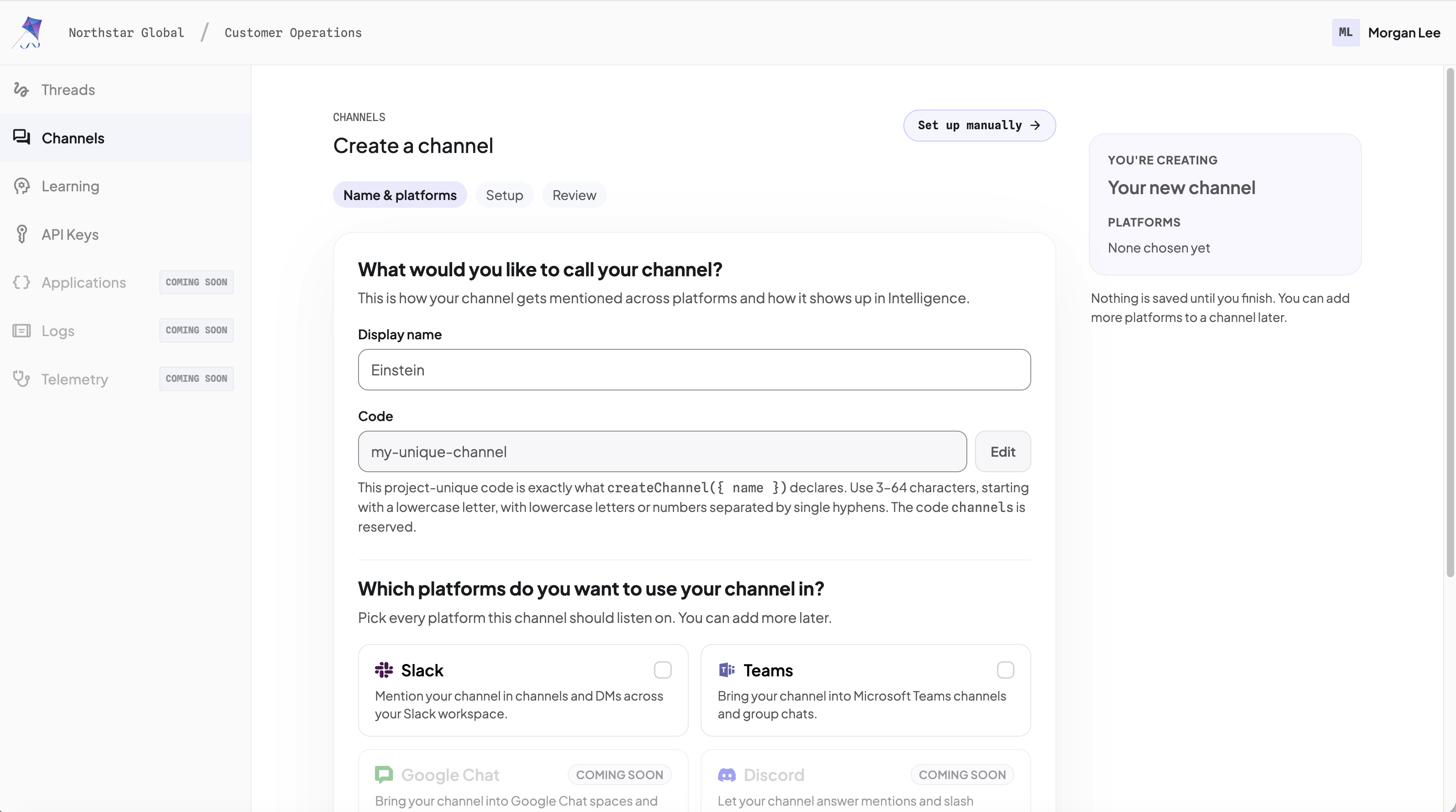
One Channel can serve both providers
Attach Slack, Microsoft Teams, or both to one Intelligence Channel. The Channel uses one Code and one SDK handler set; each event and reply remains in its originating provider conversation.
Open the Channels area#
In CopilotKit Intelligence, open your project, go to Channels, and click Add channel. In an empty project, the action is Create channel.
The wizard has three phases: Name & platforms, Setup, and Review.
Set the Display name and Code#
Enter a human-readable Display name. Intelligence derives the Code automatically; click Edit only if you need to change it.
The Code is part of the runtime contract:
- 3–64 characters
- starts with a lowercase letter
- lowercase letters and numbers separated by single hyphens
- project-unique
- cannot be
channels
Your SDK declaration must use that exact Code:
import { createChannel } from "@copilotkit/channels";
import { makeAgent } from "./agent.js";

const channel = createChannel({
  name: "support",
  identifyUser: "platform",
  agent: makeAgent,
});
A mismatch leaves the Channel at Waiting for runtime.
Choose providers#
Select Slack, Microsoft Teams, or both. Each connection has its own setup and installation steps but shares this Channel's Code and runtime declaration.
Configure Microsoft Teams for this guide. You can attach Slack to the same Channel now or later without changing the Code.
Slack and Teams use the same managed delivery path. If a provider says Not on your plan, change the project entitlement before continuing.
Cloud-hosted Intelligence support for Discord and WhatsApp shows Coming soon. The Channels SDK already exports developer-operated direct adapters for those providers.
Connect Microsoft Teams#
Intelligence creates the Channel draft, then shows you a command to run:
npx copilotkit@latest channels add \
  --project-id <project-id> --channel-id <channel-id> \
  --adapter teams --provision
Use the wizard's copy button rather than retyping it. The wizard fills in the project and channel ids that bind the Microsoft app it creates to this exact Channel; retyping them is the most common way this goes wrong.
The command signs you in to Microsoft, creates a Teams bot in your own
tenant, and points it at the Intelligence messaging endpoint. You are not
asked for a client ID, tenant ID, or secret: the command reads them from
the bot it just created and stores them write-only in Intelligence. You
never edit manifest.json.
It then writes <channel-name>-teams-app.zip next to where you ran it and
stops to hand that file to you. Microsoft exposes no install API, so
producing the package is as far as any tool can take you — the upload is
yours. Upload it from the target team → … → Manage team → Apps, not
from your personal Apps section: a personal-scope upload gives you a
working DM, no Team installation, and no way to promote it afterwards. The
command prints these steps with your package path filled in, then waits for
you to press Enter, and verifies the installation before it finishes.
If Teams offers no upload option, the tenant disallows custom apps and an administrator has to add the package for you. Stop with Ctrl-C and run the same command again once it is installed — it resumes rather than creating a second app.
You need a Microsoft account that is allowed to upload a custom app to the Team you pick. The bot is registered in Teams Developer Portal.
If you customized the app name or icons, the wizard builds that branding in
your browser and its command carries an extra --teams-package "./<file>".
Run it from the folder holding that download. The CLI validates the file,
builds the app from it, and deletes the local copy; an invalid or
mistargeted path is rejected before anything is removed. This does not
replace the Team upload above — it only decides how the app looks.
The two permissions
Reading messages in a Team channel uses ChannelMessage.Read.Group, granted
by a Team owner as the app is added. This one is required — without it the
app is installed but deaf in channels.
Reading a file someone uploads to a Team channel additionally needs the
Files.Read.All application permission, which a Microsoft administrator
must consent to. The command asks and defaults to skipping it. It is
genuinely optional: skip it and everything works except attachments
uploaded to a Team channel — files shared in a 1:1 chat and images pasted
into a channel are unaffected, and the message still arrives, just without
that attachment. It reads only; the app never creates, updates, or deletes.
You can grant it later.
Teams settles app permissions only while the app is being added, so changing your mind later means removing the app from the Team and adding it again.
What finishing does and does not prove
Finish by adding the app to a team. A personal-only installation does not complete setup. Intelligence then reports Created and installed, which means the bot exists, the credentials were accepted, and a Team installation was recorded. It does not claim your runtime is online or that a real message was ever delivered — that is the next guide.
Do not replace the messaging endpoint with your Channels runner URL. Intelligence owns the public Teams edge, and the runner takes no inbound provider traffic at all.
Review and create#
In the Review phase, confirm the Display name, Code, and selected platform, then click Create channel.
Credential validation is not an end-to-end message test.
Created and installed is provider setup, not runtime verification. Start the long-running runtime and send a real Teams message before calling the Channel working.
Configure the runtime handoff#
On the new Channel page, open Connect a runtime. The Environment file (.env) block names the Intelligence variables with blank values.
From the directory of your Channels process, sign in and select the project.
project select writes CPK_INTELLIGENCE_API_KEY.
npx copilotkit@latest login
npx copilotkit@latest project select
Set CHANNEL_CODE to the Code from this Channel. If the process does not
load that .env file, store the key in your secret manager. The project
API Keys page is the other way to copy a key. Configure the process
with:
CPK_INTELLIGENCE_API_KEY=<project-api-key>
CHANNEL_CODE=<your-channel-code>

# Optional paired overrides for self-hosted or non-production Intelligence:
# INTELLIGENCE_API_URL=https://intelligence.example.com
# INTELLIGENCE_GATEWAY_WS_URL=wss://realtime.intelligence.example.com
Cloud-hosted Intelligence supplies both default base URLs. If you
override them for a self-hosted or non-production deployment, replace both
together. The REST and realtime planes use separate hosts, so do not derive
the WebSocket URL by changing the API URL's scheme. Pass bare base URLs:
the client appends /api/..., /runner, /client, or /channels itself.
Do not append /api, /socket, /runner, /client, or /channels.
Open API Keys in the project sidebar to create and copy the project-scoped runtime key.
You choose CHANNEL_CODE from the exact Code above, and the selected agent
framework adds its own backend variables. The SDK receives the Intelligence
values through the apiKey constructor property and optional apiUrl /
wsUrl overrides shown in the platform connection guides.
Never expose the Intelligence key, Slack tokens, or Teams client secret in browser code or source control.
Next step#
Your Microsoft Teams Channel should now be Waiting for runtime. Continue to
Connect and run your agent with CHANNEL_CODE and
CPK_INTELLIGENCE_API_KEY.