Configure the Channel in Intelligence
Create a managed Channel, connect Slack or Teams, and hand its exact Code and runtime credentials to your SDK process.
Open your coding agent in your project's folder, or in an empty folder for a new app.This runs in a coding agent on your computer.
This walkthrough starts with an Intelligence project and ends with a configured platform connection waiting for your Channels SDK runtime.
In the managed path, Intelligence owns the provider connection and durable delivery edge. Your long-running process owns the agent, application tools, interactive behavior, state, and deployment.
Create and configure your Channel#
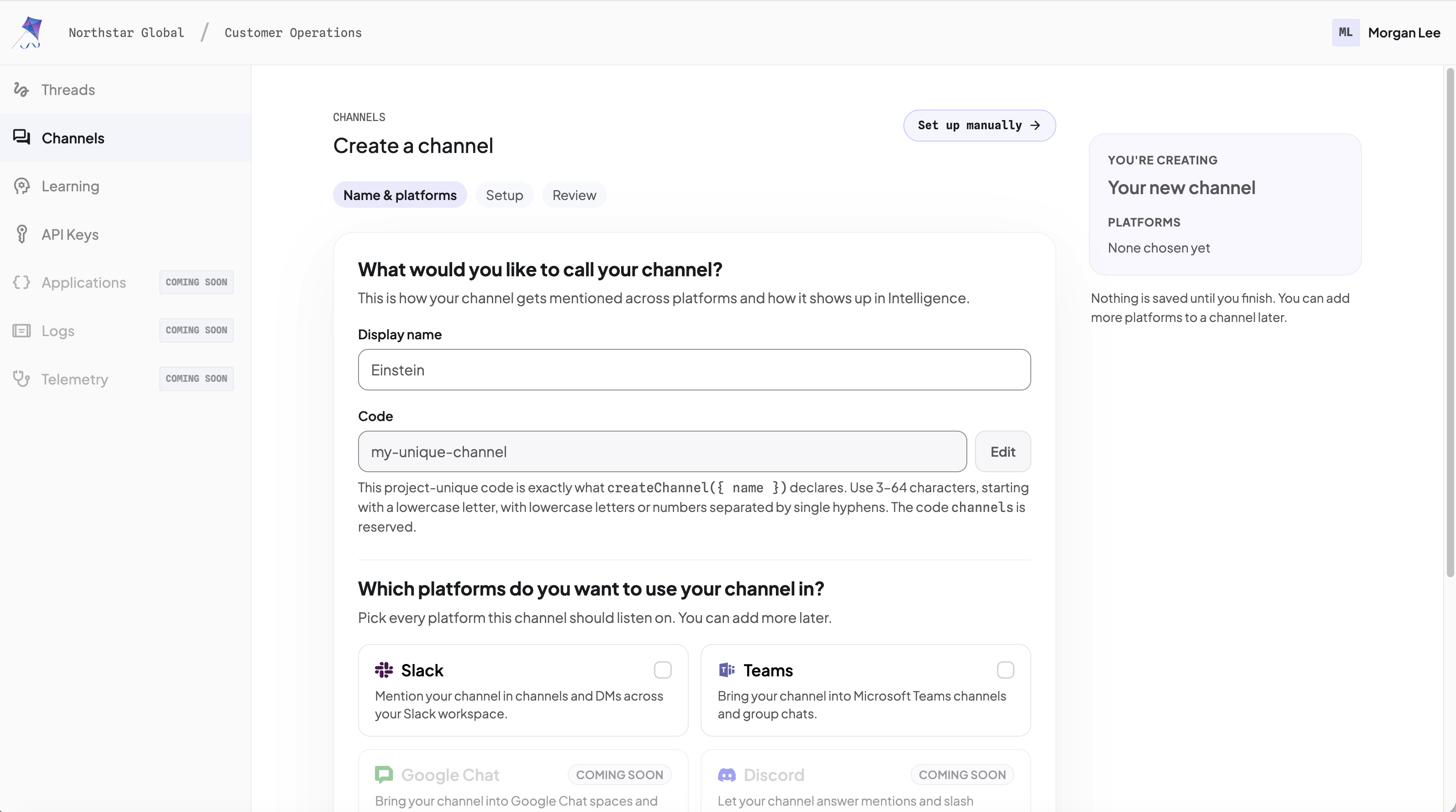
Use the browser wizard below to create the Channel, store its provider credentials, and inspect its health and threads. It is the released setup path for both Slack and Microsoft Teams.
One Channel can serve both providers
Attach Slack, Microsoft Teams, or both to one Intelligence Channel. The Channel uses one Code and one SDK handler set; each event and reply remains in its originating provider conversation.
Open the Channels area#
In CopilotKit Intelligence, open your project, go to Channels, and click Add channel. In an empty project, the action is Create channel.
The wizard has three phases: Name & platforms, Setup, and Review.
Set the Display name and Code#
Enter a human-readable Display name. Intelligence derives the Code automatically; click Edit only if you need to change it.
The Code is part of the runtime contract:
- 3–64 characters
- starts with a lowercase letter
- lowercase letters and numbers separated by single hyphens
- project-unique
- cannot be
channels
Your SDK declaration must use that exact Code:
import { createChannel } from "@copilotkit/channels";
import { makeAgent } from "./agent.js";

const channel = createChannel({
  name: "support",
  identifyUser: "platform",
  agent: makeAgent,
});
A mismatch leaves the Channel at Waiting for runtime.
Choose providers#
Select Slack, Microsoft Teams, or both. Each connection has its own setup and installation steps but shares this Channel's Code and runtime declaration.
Configure Slack for this guide. You can attach Teams to the same Channel now or later without changing the Code.
Slack and Teams use the same managed delivery path. If a provider says Not on your plan, change the project entitlement before continuing.
Cloud-hosted Intelligence support for Discord and WhatsApp shows Coming soon. The Channels SDK already exports developer-operated direct adapters for those providers.
Connect Slack#
- Copy the generated manifest, open Slack's app-creation flow, and create the app From a manifest using the YAML.
- In OAuth & Permissions, click Install to Workspace. Approve the
complete scope set from the current manifest, reinstall after any scope
update, and paste the current
xoxb-…Bot User OAuth Token into Bot token. Slack can issue a new token after reinstall. - In Basic Information → App Credentials, copy the Signing Secret into Intelligence.
- Invite the app to a channel with
/invite @<app-handle>, or open a direct message with it.
Slack sends signed Events API requests to the public Intelligence URL in the generated manifest. Cloud-hosted Intelligence provides that URL; a self-hosted deployment must expose it. Managed slash commands are not part of the Channels product surface.
Review and create#
In the Review phase, confirm the Display name, Code, and selected platform, then click Create channel.
Credential validation is not an end-to-end message test.
A valid but mismatched Slack token pair can still fail at runtime.
Configure the runtime handoff#
On the new Channel page, open Connect a runtime. The Environment file (.env) block names the Intelligence variables with blank values.
From the directory of your Channels process, sign in and select the project.
project select writes CPK_INTELLIGENCE_API_KEY.
npx copilotkit@latest login
npx copilotkit@latest project select
Set CHANNEL_CODE to the Code from this Channel. If the process does not
load that .env file, store the key in your secret manager. The project
API Keys page is the other way to copy a key. Configure the process
with:
CPK_INTELLIGENCE_API_KEY=<project-api-key>
CHANNEL_CODE=<your-channel-code>

# Optional paired overrides for self-hosted or non-production Intelligence:
# INTELLIGENCE_API_URL=https://intelligence.example.com
# INTELLIGENCE_GATEWAY_WS_URL=wss://realtime.intelligence.example.com
Cloud-hosted Intelligence supplies both default base URLs. If you
override them for a self-hosted or non-production deployment, replace both
together. The REST and realtime planes use separate hosts, so do not derive
the WebSocket URL by changing the API URL's scheme. Pass bare base URLs:
the client appends /api/..., /runner, /client, or /channels itself.
Do not append /api, /socket, /runner, /client, or /channels.
Open API Keys in the project sidebar to create and copy the project-scoped runtime key.
You choose CHANNEL_CODE from the exact Code above, and the selected agent
framework adds its own backend variables. The SDK receives the Intelligence
values through the apiKey constructor property and optional apiUrl /
wsUrl overrides shown in the platform connection guides.
Never expose the Intelligence key, Slack tokens, or Teams client secret in browser code or source control.
Next step#
Your Slack Channel should now be Waiting for runtime. Continue to
Connect and run your agent with CHANNEL_CODE and
CPK_INTELLIGENCE_API_KEY.