Threads Drawer
Drop-in threads drawer that lists, switches, and manages conversations next to your chat.
Open your coding agent in your project's folder, or in an empty folder for a new app.This runs in a coding agent on your computer.
What is this?#
<CopilotThreadsDrawer> gives your app a ready-made conversation sidebar. Users can list, switch, start, archive, and delete their threads, and you wire up no active-thread state to make it work. Drop it next to your chat and it connects automatically through a shared chat configuration.
If your project was created from a CopilotKit CLI starter, the Drawer and its shared configuration may already be included. Otherwise, use the setup below to add it to an existing Vue application.
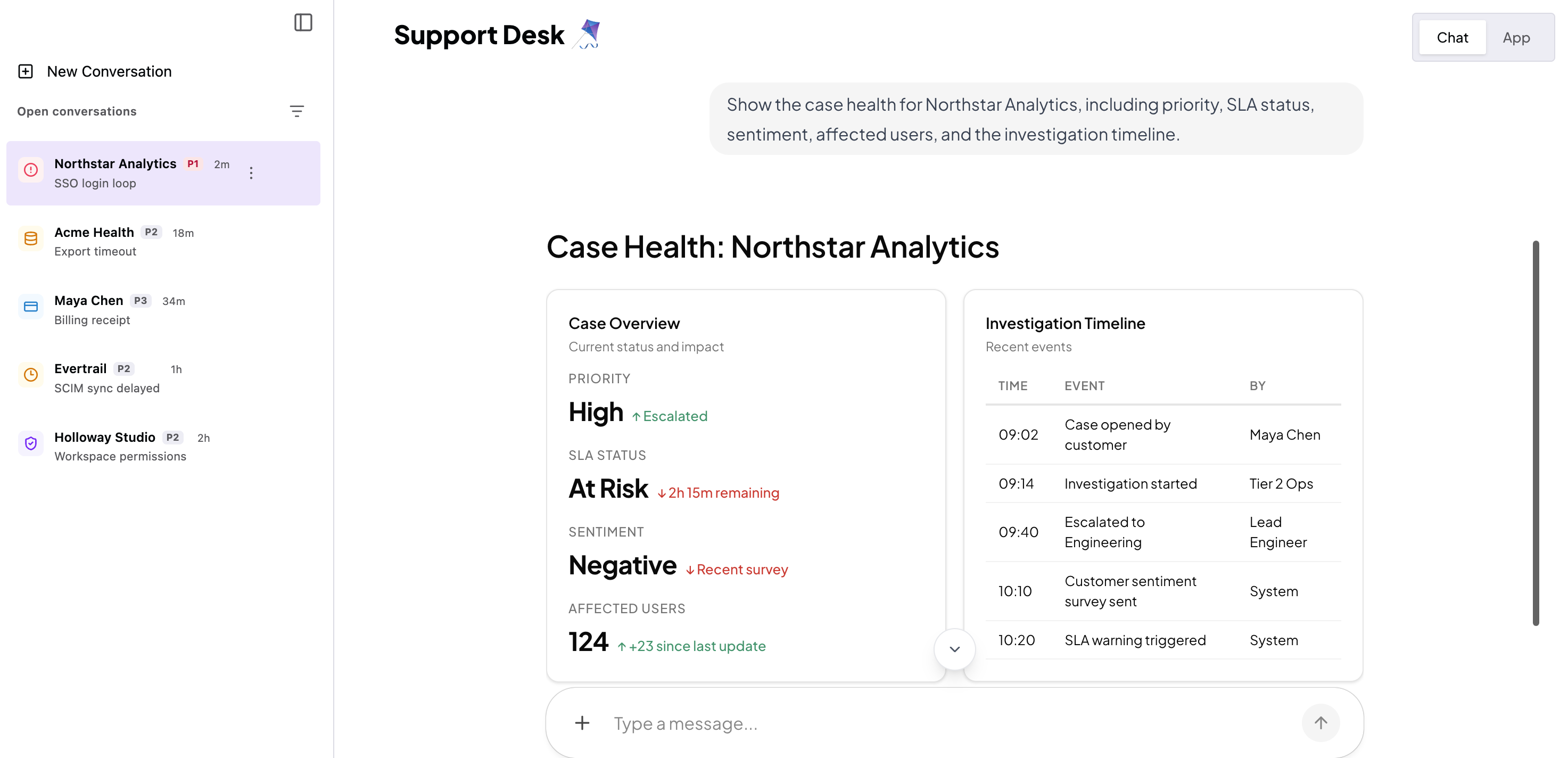
Under the hood, the Vue component is an SSR-safe wrapper around the self-contained copilotkit-threads-drawer web component. It is fed by useThreads and the current chat configuration.
Prefer to build your own thread UI? The same data and actions are available through useThreads; see Headless Threads. Thread rename is one of those headless actions: the prebuilt drawer covers archive, unarchive, and delete, so use your own rows when rename is required.
When should I use this?#
Use the drawer when you want:
- A persistent thread switcher beside your chat
- Thread switching, new conversations, archive, and delete with zero wiring
- A self-contained, themeable UI that follows your app's light/dark theme
- A mobile-ready off-canvas drawer with its own launcher
It requires CopilotKit Intelligence because threads are stored and synchronized server-side. Get a free developer account to set that up.
For multi-user applications, configure the runtime to scope Rich Threads to the signed-in user.
Set up the Threads Drawer#
Place <CopilotThreadsDrawer> next to <CopilotChat> and wrap both in a shared <CopilotChatConfigurationProvider>. That shared configuration lets the Drawer drive the chat: selecting a row connects the chat to that thread and replays its history; the New Conversation row resets the chat to a fresh welcome screen.
<script setup lang="ts">
import {
  CopilotChat,
  CopilotChatConfigurationProvider,
  CopilotKitProvider,
  CopilotThreadsDrawer,
} from "@copilotkit/vue/v2";
import "@copilotkit/vue/styles.css";
</script>

<template>
  <CopilotKitProvider
    runtime-url="/api/copilotkit"
    public-license-key="ck_pub_..."
  >
    <CopilotChatConfigurationProvider agent-id="support">
      <div style="display: flex; height: 100dvh">
        <CopilotThreadsDrawer />
        <CopilotChat />
      </div>
    </CopilotChatConfigurationProvider>
  </CopilotKitProvider>
</template>
That's the whole integration. A hand-built sidebar would track the active thread id and pass selection/new-thread handlers between the list and chat; the shared configuration owns that state for the Drawer.
Add your own "New conversation" button#
The Drawer has its own "New Conversation" row. Your app can also keep its own
button, for example in a toolbar or a page header. Call startNewThread() from
useCopilotChatConfiguration,
the same configuration method the Drawer calls for its own row.
<script setup lang="ts">
import { useCopilotChatConfiguration } from "@copilotkit/vue/v2";

const configuration = useCopilotChatConfiguration();

function startNewConversation() {
  configuration.value?.startNewThread();
}
</script>

<template>
  <button type="button" @click="startNewConversation">New conversation</button>
</template>
Put the button inside the same <CopilotChatConfigurationProvider> as the
Drawer and chat:
<script setup lang="ts">
import {
  CopilotChat,
  CopilotChatConfigurationProvider,
  CopilotKitProvider,
  CopilotThreadsDrawer,
} from "@copilotkit/vue/v2";
import NewConversationButton from "./components/NewConversationButton.vue";
import "@copilotkit/vue/styles.css";
</script>

<template>
  <CopilotKitProvider
    runtime-url="/api/copilotkit"
    public-license-key="ck_pub_..."
  >
    <CopilotChatConfigurationProvider agent-id="support">
      <div style="display: flex; height: 100dvh">
        <CopilotThreadsDrawer />
        <main style="flex: 1; display: flex; flex-direction: column">
          <header><NewConversationButton /></header>
          <CopilotChat />
        </main>
      </div>
    </CopilotChatConfigurationProvider>
  </CopilotKitProvider>
</template>
How it works:
-
Outside a configuration provider,
useCopilotChatConfiguration()returns a computed ref containingnull, so the button does nothing. -
startNewThread()gives the chat a new thread id and shows its welcome screen. The Drawer reads the active thread from the same configuration, so no row stays selected. -
The new thread appears in the Drawer list after its first run. An empty thread does not get a row.
-
If you set
threadIdon<CopilotChatConfigurationProvider>, your app controls the thread. Then the configuration'sstartNewThread()andsetActiveThreadId()do nothing and log a warning. Keep the id in your own state and pass the DraweronThreadSelectandonNewThreadcallbacks. Your button updates the same state:src/components/ControlledChat.vue <script setup lang="ts"> import { ref } from "vue"; import { CopilotChat, CopilotChatConfigurationProvider, CopilotThreadsDrawer, } from "@copilotkit/vue/v2"; const threadId = ref<string>(crypto.randomUUID()); const selectThread = (id: string) => { threadId.value = id; }; const startNewConversation = () => { threadId.value = crypto.randomUUID(); }; </script> <template> <CopilotChatConfigurationProvider :thread-id="threadId"> <CopilotThreadsDrawer :on-thread-select="selectThread" :on-new-thread="startNewConversation" /> <button type="button" @click="startNewConversation"> New conversation </button> <CopilotChat /> </CopilotChatConfigurationProvider> </template>Render
ControlledChatinside your<CopilotKitProvider>.
To show only your button, hide the Drawer's own new-conversation controls with
their CSS parts. new-thread-button is the row in the open Drawer.
launcher-new-thread is the (+) button in the closed or collapsed launcher.
copilotkit-threads-drawer::part(new-thread-button),
copilotkit-threads-drawer::part(launcher-new-thread) {
  display: none;
}
Configuring the drawer#
<CopilotThreadsDrawer> works with zero props. Its optional props are:
| Prop | Description |
|---|---|
agentId | Agent whose threads to list; defaults to the chat configuration's agent. |
label | Accessible name for the drawer region and listbox; defaults to "Threads". |
recentLabel | Heading above the list; defaults to "Recent Conversations". |
onThreadSelect | Escape hatch to take over thread selection. |
onNewThread | Escape hatch to handle the New Conversation row. |
onLicensed | Called when the user clicks Upgrade in the locked drawer. This is not a license-check completion notification. |
licenseUrl | Override for the licensing destination. |
collapsible | Whether the expanded desktop drawer can collapse; defaults to true. |
limit | Page size. The drawer shows Load more while another page exists. |
See the Vue Threads Drawer reference for the full prop and event types.
Customization#
The drawer renders in a shadow root with self-contained, theme-inheriting styles. Vue exposes bounded escape hatches:
-
Named web-component slots: project children with a
slotattribute such asheader,empty,footer,memories, orlauncher-icon.<CopilotThreadsDrawer> <span slot="header">My conversations</span> </CopilotThreadsDrawer> -
Per-row content: use the Vue
#row="{ thread }"scoped slot. Defining it replaces every row's inner content, so reproduce the default markup inside the slot when you need a per-row fallback.<CopilotThreadsDrawer> <template #row="{ thread }"> <strong>{{ thread.name ?? "New conversation" }}</strong> </template> </CopilotThreadsDrawer> -
CSS parts and variables: style the web component's structural
::part()targets or override its--cpk-drawer-*custom properties. The reference lists the supported parts and tokens.
License#
Threads require CopilotKit Intelligence. Without a valid Threads license, the drawer shows a locked view in place of the list.
Related#
- AG-UI Streams overview: compare thread UI and deployment paths.
- Headless Threads: build a custom UI with the
useThreadsdata layer. - Threads Drawer reference (Vue).
- CopilotChat: the chat the drawer connects to.