AG-UI Streams
Let users reconnect, catch up on missed events, and resume conversations across devices with Intelligence’s AG-UI streams.
CopilotKit Intelligence’s AG-UI streams carry the full interaction between your agent and your users. That includes messages, thinking traces, tool calls, generative UI, uploaded files (such as images, PDFs, and Excel files), and application state.
They’re designed to complement your existing thread storage, whether you use LangGraph, Google ADK, Mastra, or a custom backend. You can also use CopilotKit Intelligence as your standalone thread store.
Starting fresh?
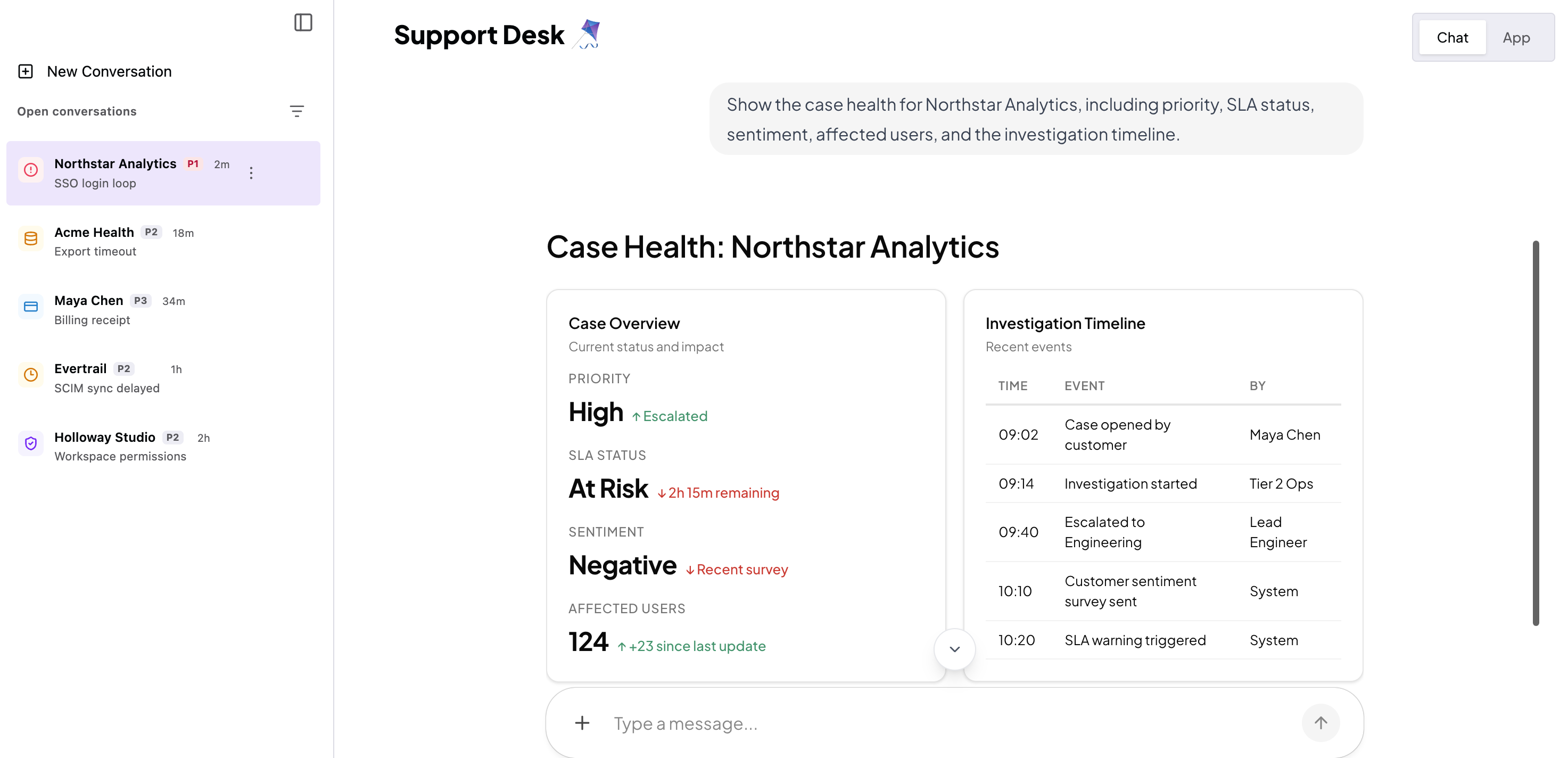
Intelligence stores your conversation history and restores messages, generative UI, tool interactions, and multimodal inputs when users return.
Already have your own threading system?
Keep it. Intelligence records its own copy of your supported AG-UI interactions while your framework manages the original conversation and agent state. Read more.
Add AG-UI Streams to existing threads#
Already have threads in LangGraph, Google ADK, Mastra, or a custom backend and want them to work with CopilotKit? Keep your existing storage. Your framework manages the agent’s conversation, model context, and execution state; Intelligence adds the event history and delivery needed to restore the interactive conversation for your users.
Connect your existing CopilotKit app through the Intelligence quickstart to add AG-UI delivery to future runs while your framework continues managing agent context and persistence. To include earlier conversations too, follow Add AG-UI Streams to Existing Threads for the optional historical steps supported for ADK, LangGraph, and Mastra. Import is a one-time adoption step, not ongoing replication between databases.
CopilotKit Threads are separate from native framework session or checkpoint stores. Your backend can keep a stable mapping when the agent framework also needs its own conversation identifier.
LangGraph thread IDs
CopilotKit passes the active threadId to your LangGraph backend through AG-UI. You can use it directly or persist a mapping to a LangGraph thread or checkpoint identifier. LangGraph Platform thread IDs must be UUIDs.
Why use CopilotKit AG-UI Streams?#
Intelligence’s AG-UI streams add delivery capabilities around your existing agent and framework threads:
- Reconnect and catch up. Reopen a conversation to replay recorded events and reconnect to an active run.
- Continue in the background. An agent run can continue after the browser disconnects while your Runtime and agent remain running. This is not execution recovery after a server failure.
- Deliver across devices. Users can reopen the same conversation on another device. Intelligence synchronizes thread metadata for connected clients; your application supplies a stable user identity.
- Separate user history from model context. Intelligence records the AG-UI events delivered through it. Your framework’s model-context compaction and Intelligence’s event replay serve different purposes.
- Restore the interactive conversation. Replay includes supported messages, generative UI, tool interactions, state, and multimodal inputs.
These are capabilities of CopilotKit Intelligence, not guarantees provided by the AG-UI protocol alone. Reopening or switching back to a conversation triggers replay and reconnection; see connection behavior.
Start with your coding agent#
Copy this prompt into your coding agent to inspect your existing CopilotKit app and configure AG-UI Streams with CopilotKit Intelligence. Prefer to work through the setup yourself? Follow the manual steps below.
Open your coding agent in your project's folder, or in an empty folder for a new app.This runs in a coding agent on your computer.
Set up AG-UI Streams manually#
Create a new CopilotKit app connected to cloud-hosted CopilotKit Intelligence. Your application and CopilotKit Runtime run locally while CopilotKit Intelligence records AG-UI events and delivers them to connected clients. If you already have a working app, follow the Intelligence quickstart to connect it instead.
Connect CopilotKit Intelligence#
Complete browser sign-in, then create or select a CopilotKit Intelligence project when the CLI asks.
Start your app and Runtime#
Start the generated application and Runtime with the command printed by the CLI. For the standard npm setup:
cd <project-directory>
npm run dev
Verify your first thread#
Use the included Threads Drawer to create a conversation. Reload the page or reopen the conversation and confirm that its complete history returns.
See it in Inspector#
Open Inspector on localhost and inspect your conversation under the Rich Threads pane. Real threads appear when Intelligence is on. Enable Intelligence appears when it is off. Open a real thread and use Try from here to copy it into a Playground scratch session. The stored thread does not change.
More detail: Inspector.
Threads-capable CLI starters already include Threads Drawer. Use its guide when you are ready to customize the drawer. Choose Headless Threads later if your product needs a fully custom thread UI.
Production self-hosting: Run CopilotKit Intelligence in your own infrastructure#
Production self-hosting keeps AG-UI Streams, durable event history, identity, storage, and operations inside your network, giving your organization control over data residency, security, and infrastructure. CopilotKit Engineering helps your team deploy CopilotKit Intelligence in your Kubernetes environment. Book time with a CopilotKit engineer to get started.
How AG-UI Streams work#
Both UI paths use Intelligence’s AG-UI streams. A stable threadId connects the visible conversation to the runtime and its durable event history.
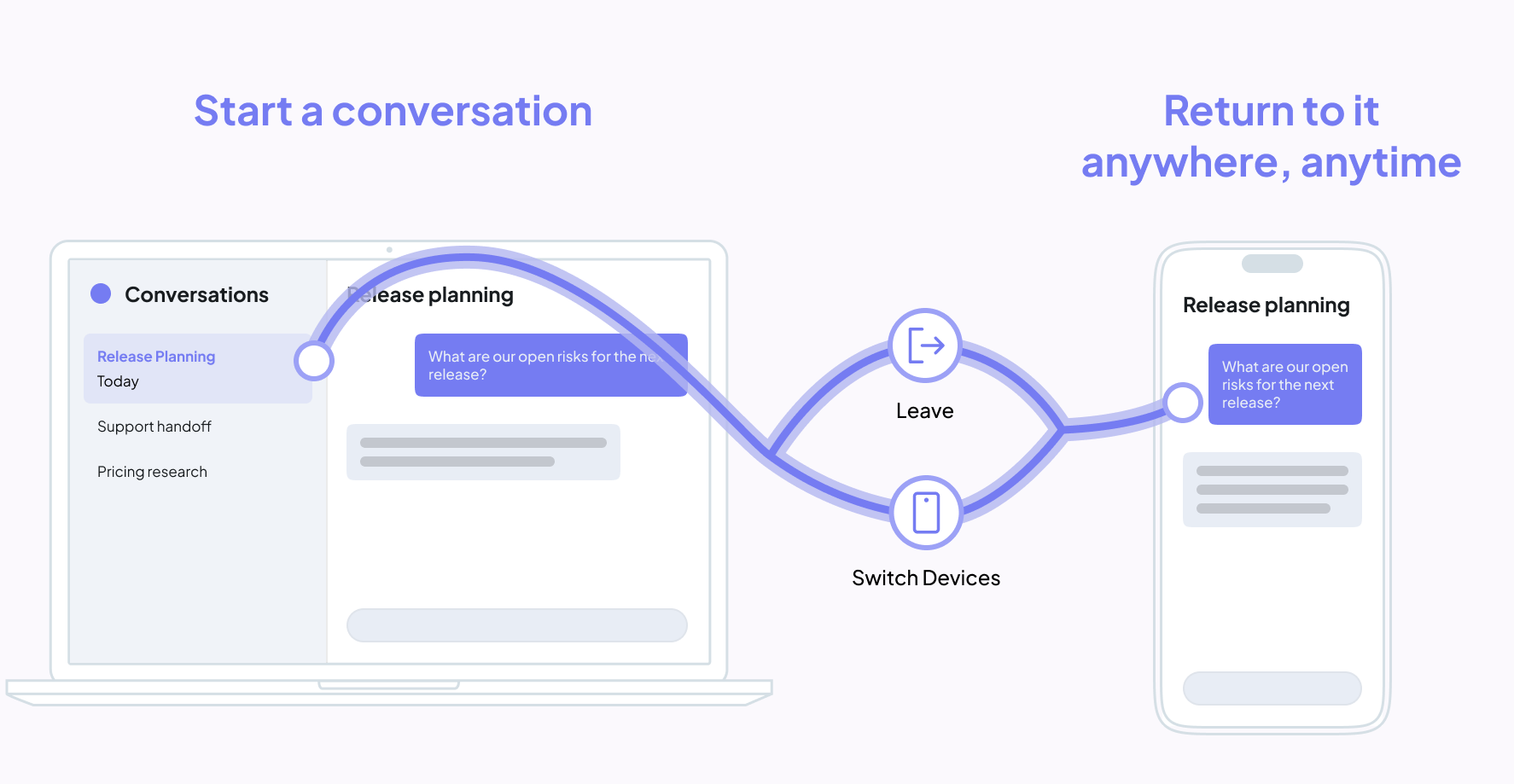
- Your UI opens a conversation with a stable
threadId. CopilotRuntimeruns your agent and sends conversation events to CopilotKit Intelligence.- When users return, CopilotKit Intelligence replays the stored history, reconnects any live run, and synchronizes thread metadata.
How are threads scoped to each user?
Your application authenticates its users, and CopilotRuntime resolves that
verified identity on the server with identifyUser. CopilotKit Intelligence
uses the stable user ID to scope thread lists and lifecycle actions. See
Scope AG-UI Streams to the signed-in user
for the Runtime contract and an implementation pattern.
What CopilotKit handles#
| CopilotKit handles | You control |
|---|---|
| Durable event storage and replay | Your agent's behavior and tools |
| Replay-to-live stream reconnection | The conversation experience and layout |
| Realtime thread metadata synchronization | Which thread actions your users can access |
| Naming, pagination, archive, and delete semantics | Application authorization and permissions |
| Runtime-to-platform event plumbing and thread locks | Mapping to native framework sessions when needed |
| Cloud-hosted or self-hosted platform infrastructure | The deployment model that fits your organization |
Headless means custom UI, not custom infrastructure
Threads Drawer and Headless Threads use the same persistence, replay, synchronization, and locking infrastructure. Choose Headless Threads when you want to build the interface yourself, not when you want to rebuild the Threads backend.
Choose how to build the UI#
Use Threads Drawer for a ready-made conversation list, or build your own with useThreads. Pass the selected threadId to your chat to load its history and receive new events.
Threads Drawer
Ship a mobile-friendly conversation sidebar with switching, new conversations, archive, delete, and pagination already wired to your chat.
Headless Threads
Build a custom layout, workflow, permission model, or thread action UI while CopilotKit continues to handle the backend.
For how Intelligence and framework persistence work together, see AG-UI Streams & Framework Threads.
Next steps#
- AG-UI Streams & Framework Threads — event replay, live reconnection, synchronization, locking, and lifecycle behavior.
- Cloud-hosted CopilotKit Intelligence — create the project that stores your app's threads and runtime credentials.
- Self-host CopilotKit Intelligence — run the Threads platform in your Kubernetes environment with CopilotKit Engineering.
- useThreads reference — parameters, lifecycle methods, pagination, and return types.